


Everything the Linea Pelle website can do, on a single page: finding a colour, comparing it with others, downloading the sheets, requesting samples and ordering. Each section explains one tool.
In this guide
- Finding a material
- Browse by colour
- Find the colour from a photo
- An article page
- PDF sheets
- The moodboard
- Ordering
- From architect to manufacturer
- Look and language
Finding a material
In the top menu, Leather and Fabrics open the list of collections, each with its number of colours; tapping the item takes you to the page with all the collections. On a phone the same list opens from the three-line button.

The magnifying glass searches the whole site: a collection name, such as Maya or Vogue, a colour, such as Cognac, or a code.
At the end of the menu, Moodboard and Order have an outline that makes them stand out: Moodboard opens your board and shows how many samples you have collected, Order takes you straight to the order form. Atelier is under Company, together with About us, Contact, Blog and FAQ.
Browse by colour
Browse by colour gathers every colour of every collection, leather and fabric, on a single page: you start from the shade you have in mind and get to the article. The filters can be combined.
- Colour: the colour families, from white to black; you can pick more than one.
- Type: leather only, fabrics only, or both.
- Products: the colours of one or more collections.
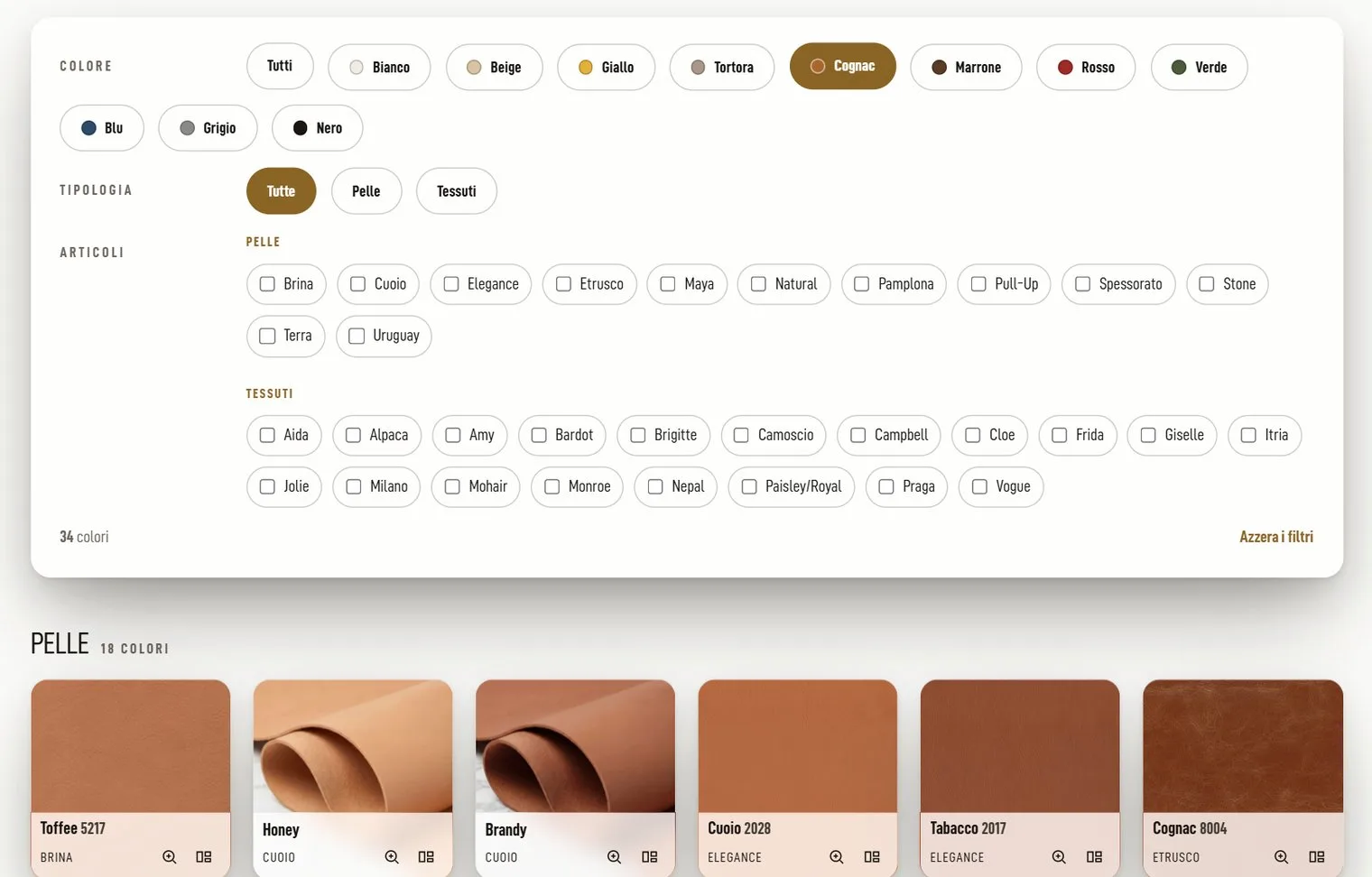
Each colour shows its code, the magnifier to enlarge it and the icon to put it in the moodboard. “Clear the filters” brings the page back to how it was.
Find the colour from a photo
Do you have a photo of a sofa, a fabric or a room? In Browse by colour press “Find the colour from a photo”. On a phone you take a photo or choose one from your gallery; on a computer you upload it, drag it into the box or paste it with Ctrl+V.
Then tap the spot with the colour you are interested in: the closest colours in the catalogue appear alongside, marked as very close, close or similar. With “Search in” you choose whether to look among leather, fabrics or both.
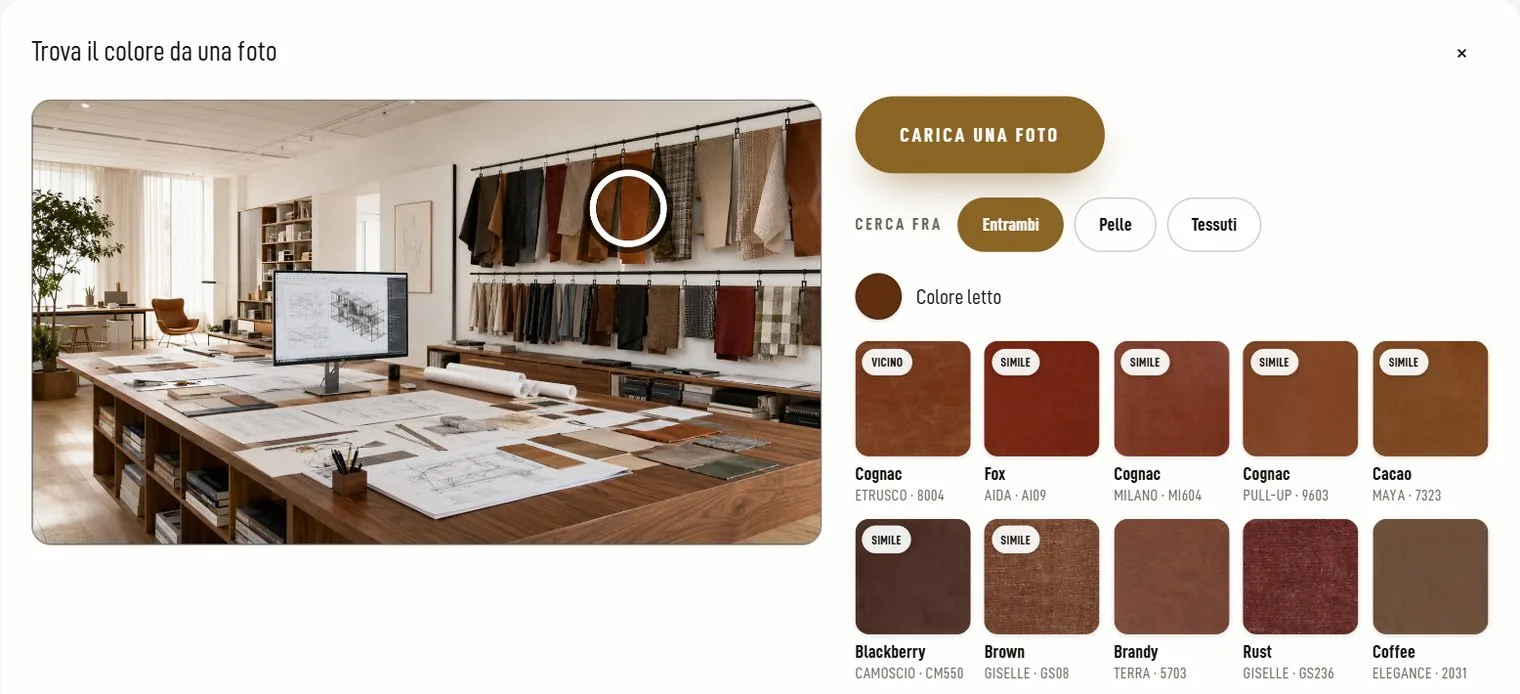
If the light in the photo is misleading, “Correct the light” asks you to tap something white, a sheet of paper or a wall, and recalculates. On a phone you can also use the live view and freeze the image when the colour is in the centre.
The photo stays on your device: the website does not receive it. And since the colour in a photo changes with the light and the phone, ask for the sample to confirm it, free for companies and professionals.
An article page
Each collection has its own page: the large sample at the top, all the colours next to it. Tap a colour to see it large.
- Flat and Draped: the flat photo shows the colour and the grain, the draped one how the material folds and catches the light.
- Enlarge: the sample full screen, to look at the grain up close.
- Share: the colour via WhatsApp, email, Facebook or X.
- The moodboard icon: the colour goes onto your board.
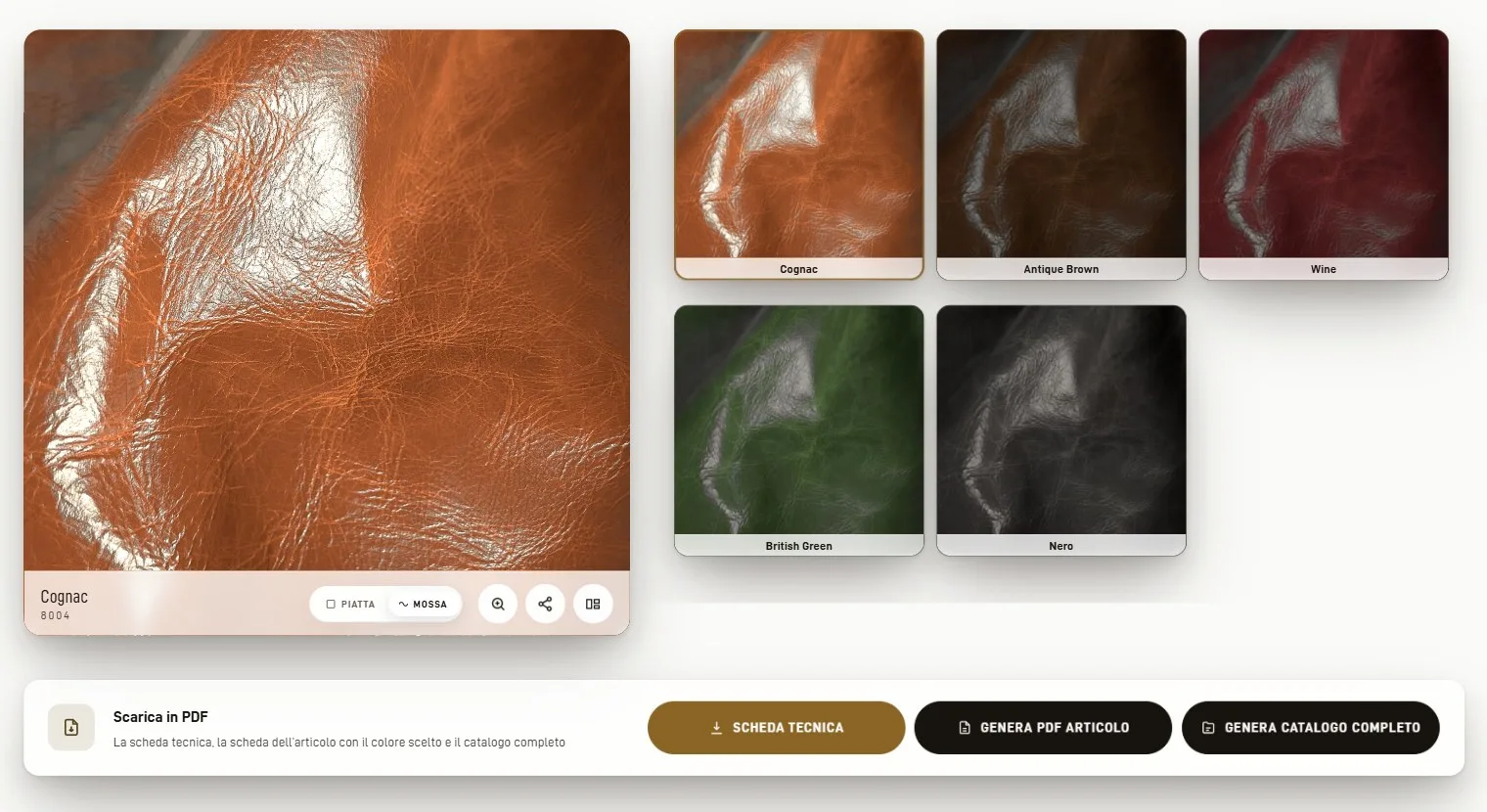
Below the colours, in the “Download as PDF” box, are the technical sheet and the buttons for the PDF sheets; further down, the description and the collection’s technical features.
PDF sheets
“Generate product PDF” prepares the collection sheet: all the colours with their codes, the description and the technical features, with the colour you are looking at highlighted.
“Generate the full catalogue” puts every collection in a single PDF; the first time it can take a few minutes. You can choose it in high resolution, for printing, or light, about a third of the size, handy for sending by email.
“Technical sheet”, in the same box, downloads the sheet with the collection’s full features and care instructions: it is there for the articles that have one.
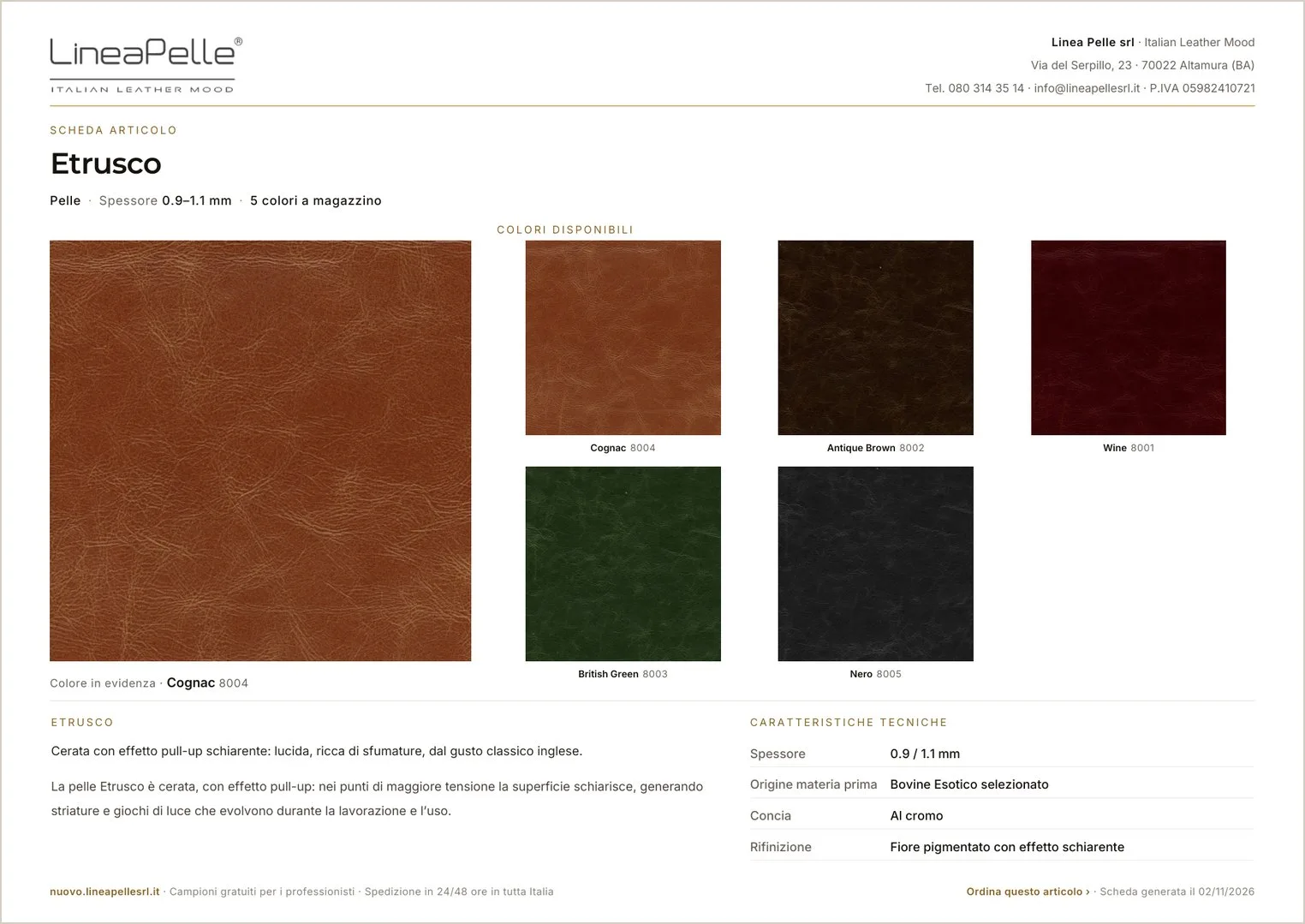
At the bottom of the sheet there is the “Order this article” link: it opens the order form with the collection already selected and the sheet’s colour already listed.
The moodboard
The moodboard is a personal board where you set aside the samples that inspire you and try out leather and fabric combinations. It opens from “Moodboard”, at the end of the top menu.
- It arranges itself: the samples take different shapes, square, rectangle, strip, bean or circle, and are laid out as on an architect’s board.
- Shuffle: new shapes and a new layout for all the samples, until you like the composition.
- Clean view: names, codes and buttons disappear, so you see only the colours; tap a sample to see its own.
- Move: drag the samples across the board to try other combinations.
- Rotate by 90°, enlarge and change the shape of each sample.
- Front and back: overlap the samples as you would on a table.
- Background: try the materials on walnut, bleached oak, marble, travertine and other surfaces.
- Expand: widen the board to work more comfortably.
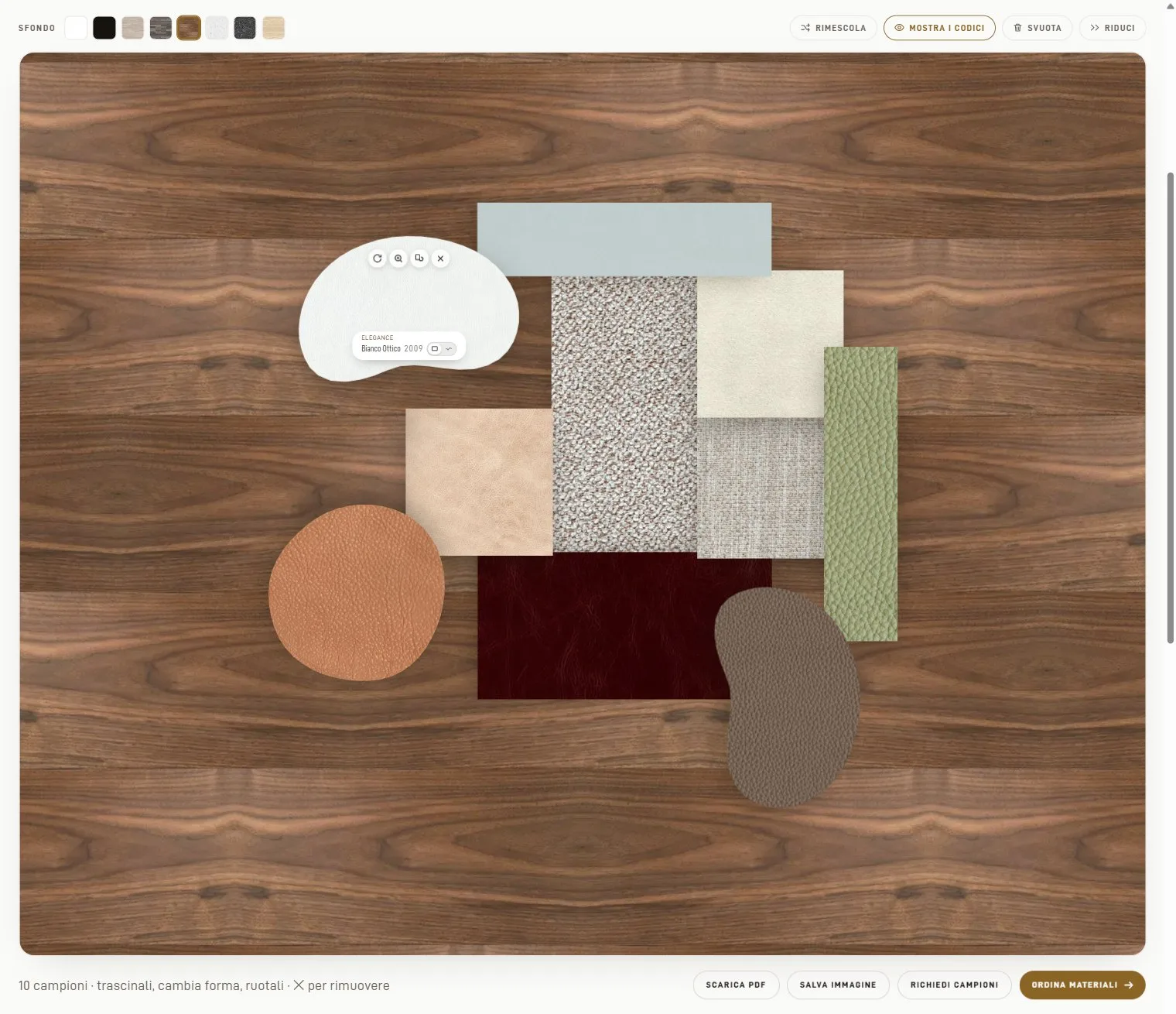
The moodboard stays in your browser: you will find it next time you open the site on the same device. To take it elsewhere, there are the PDF and the image.
Download PDF
On the first page there is the image of your composition; then the PDF lists each sample with its photo, article, main features and certifications. You can keep it or pass it on to anyone: its buttons reopen the same selection on the website, from any device.
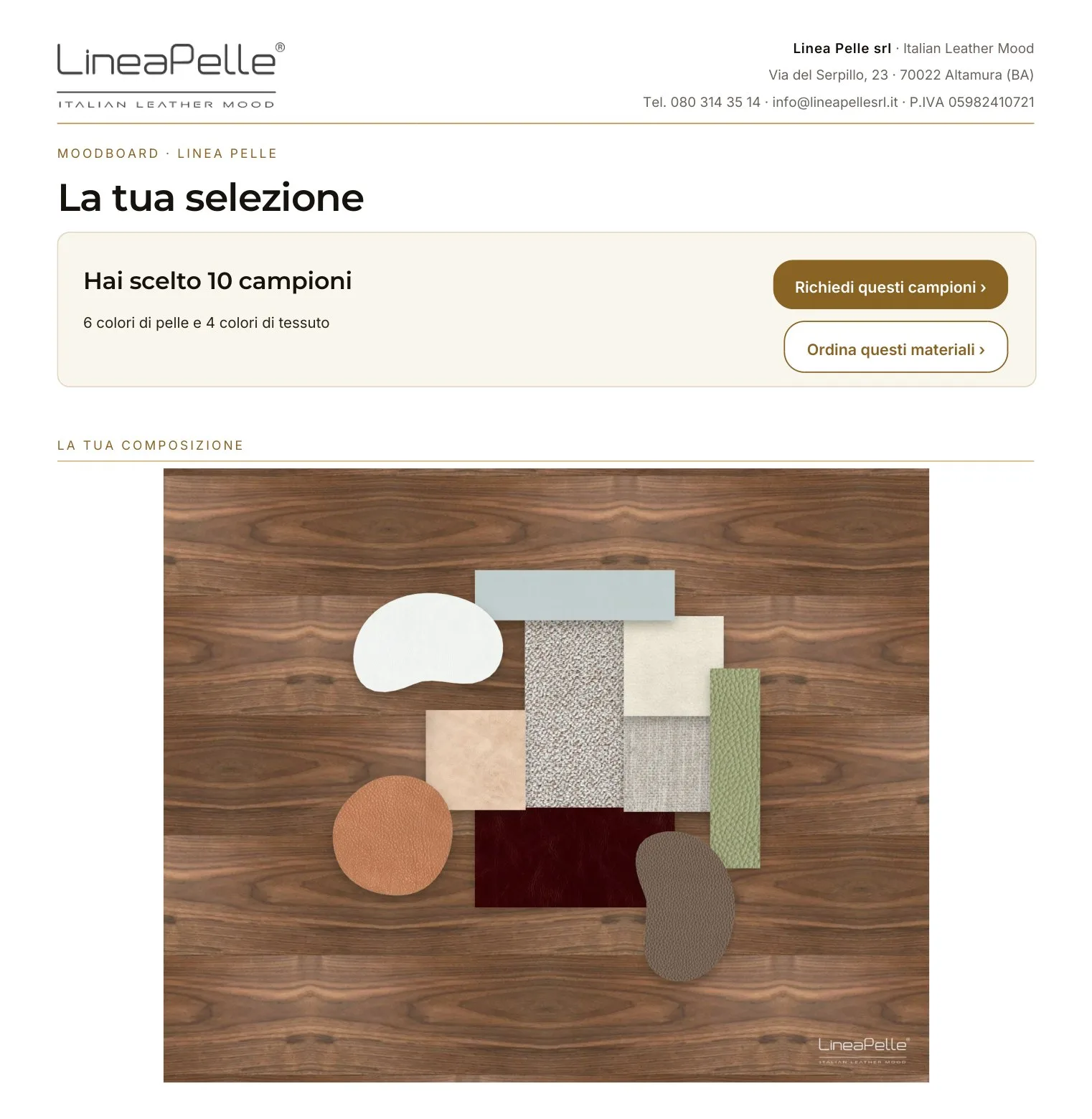
Save image
“Save image” downloads the composition as a JPG, just as it is on the board: on the chosen background and with the Linea Pelle logo, ready to send to a client or put in a presentation.
Request samples
“Request samples” takes you to the form for the pack: real samples, machine-cut and labelled with article, name and code. Shipping takes 24/48 hours anywhere in Italy, free for companies and professionals.
Order materials
It opens the order form with the board’s samples already listed: all that is left is to enter the quantities.
Ordering
Nothing is paid on the website: you send the order and we confirm prices, availability and delivery. The form has three parts.
1. Your details
Company name, contact person, contact details and delivery address. With “Remember my details” they stay in your browser for the next order; they are not kept on the website.
2. The articles
Type a code, a colour or a collection name in the search box and pick from the list, or choose Type, Article and Colour from the drop-downs. Then press “Add”.
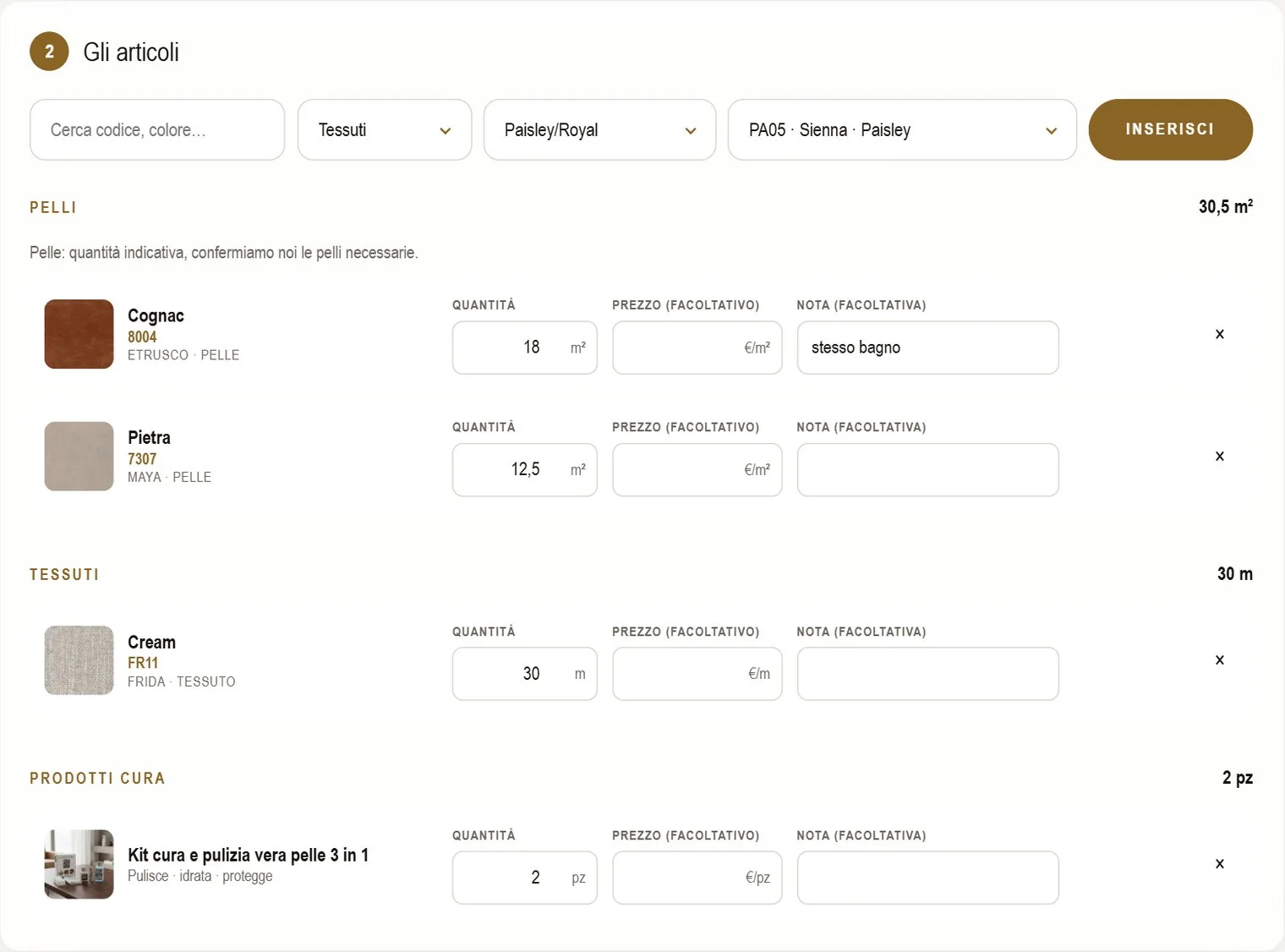
The lines sort themselves into Leather, Fabrics and Care products, each with its total quantity. Leather is ordered in square metres, fabrics in metres, care products in pieces. For leather the quantity is indicative: we confirm the number of hides needed.
Next to each line you can enter a price, if you have agreed one, and a note. If every line has a price, the indicative total, excluding VAT, appears at the bottom.
3. Notes and sending
“PDF preview” shows the order as it is, before you send it. “Send the order” sends it: you get the order number and an email copy with the PDF.
The order in progress stays in the browser even if you close the page: you will find it when you come back.
From architect to manufacturer
An example of how the tools work together.
- The architect browses the catalogue, even starting from a photo of the project, and puts the leathers and fabrics they have in mind into the moodboard.
- They compose the board, using “Shuffle” for a different layout if they like, and download the selection as PDF.
- They pass the PDF on to the manufacturer who will make the furniture.
- The manufacturer opens the PDF and taps “Order these materials”: the order form opens with the materials chosen by the architect already loaded.
- They add the quantities, check the preview and send. We confirm prices, availability and delivery.
No codes to retype, no colour changing from one step to the next. If they want to see the materials in person first, the manufacturer can request the samples from the same PDF.
Look and language
At the top right, two switches change the look of the site: the theme, white or warm black, and the glass of the panels, light or smoke. On a phone you will find them at the bottom of the menu. The site remembers your choice.
After the magnifying glass, the round button with IT or EN switches between Italian and English; on a phone, IT and EN are at the bottom of the menu.
Other pages
Atelier, under Company in the menu, describes our made-to-order work: CAD cutting, laser engraving, perforating, punching and sample books. Care products presents the kit to clean, moisturise and protect genuine leather, which can also be ordered from the order form. The frequently asked questions cover half hides and cuts, ongoing supplies, samples and reordering the same colour.
If anything is unclear, call or write to us: phone, opening hours and address are on the Contact page.